
Getting Started
Running Lyricify 4
Section titled “Running Lyricify 4”If you want to use Lyricify 4, please ensure that .NET Desktop Runtime 6.0 is installed on your system. If prompted that it is not installed upon startup, you need to download and install it first:
Click to download .NET Desktop Runtime 6.0.16 x86 x64 Arm64
Click here for the official .NET 6.0 download page
Things to Know Before Using
Section titled “Things to Know Before Using”When entering the main interface, if there are no songs currently playing, please do not attempt to click the play button, as it will have no effect. Lyricify is a lyrics software, not a player; if music is not playing on Spotify, lyrics will not be displayed.
Spotify Premium Exclusive Features
Section titled “Spotify Premium Exclusive Features”- Lyricify Smart Engine
- Request any song (click the play button, or double-click a song in the playlist or album)
- Control playback (adjust progress, play, pause, previous track, next track, loop, shuffle)
- Control volume
- Add to playlist
- Use Lyricify’s built-in playback
Note: Free accounts can also control playback when the Media Session connection is normal.
Welcome Window
Section titled “Welcome Window”Basic Settings
Section titled “Basic Settings”When you first open Lyricify 4, some basic settings will appear.
- Language: The display language of Lyricify and the content language of Spotify. For the best Media Session experience, it is recommended to keep it consistent with Spotify’s settings. If you listen to a lot of Mandarin songs, it is advisable to set the display language to Chinese to improve the accuracy of automatic lyrics search.
- Chinese Translation: Whether to display Chinese translations when available in the lyrics.
- Color Mode:
Dark ThemeorLight Theme. If you want to create your own color theme, you can read more about Custom Color Themes. - Preset Configuration: Generally, it is set to default. If your device has lower performance, you can set it to
Better Performance; if your device has high performance, you can try setting it toBetter Quality.- Default: Recommended settings.
- Better Performance: Disables some features and effects to ensure a smooth lyrics experience.
- Better Quality: Enables all effects, which may cause stuttering during lyrics scrolling on some devices, especially in the
Apple Music Lyricsinterface.
After completing the above settings, click continue.
Logging into Spotify
Section titled “Logging into Spotify”Lyricify 4 only supports Spotify, so you must complete Spotify authorization to use Lyricify 4 normally.
This step will automatically open the Spotify authorization webpage in your web browser, where you need to complete the authorization. After completing the authorization, the webpage will display the following message:
Success!Spotify authorization successful. You can now close this tab and return to Lyricify.At this point, return to the Lyricify welcome screen, and you should see a message saying Successfully connected to Spotify. If you see Spotify authorization completed, please wait a few seconds, it means the Spotify authorization has been completed, and Lyricify is registering with the server; just wait a few seconds.
Finally, click the Continue button to start your new Lyricify experience.
Main Interface and Playback
Section titled “Main Interface and Playback”If you are playing music on any device logged into that Spotify account, the lyrics for the track will be displayed in Lyricify’s Lyrics interface.
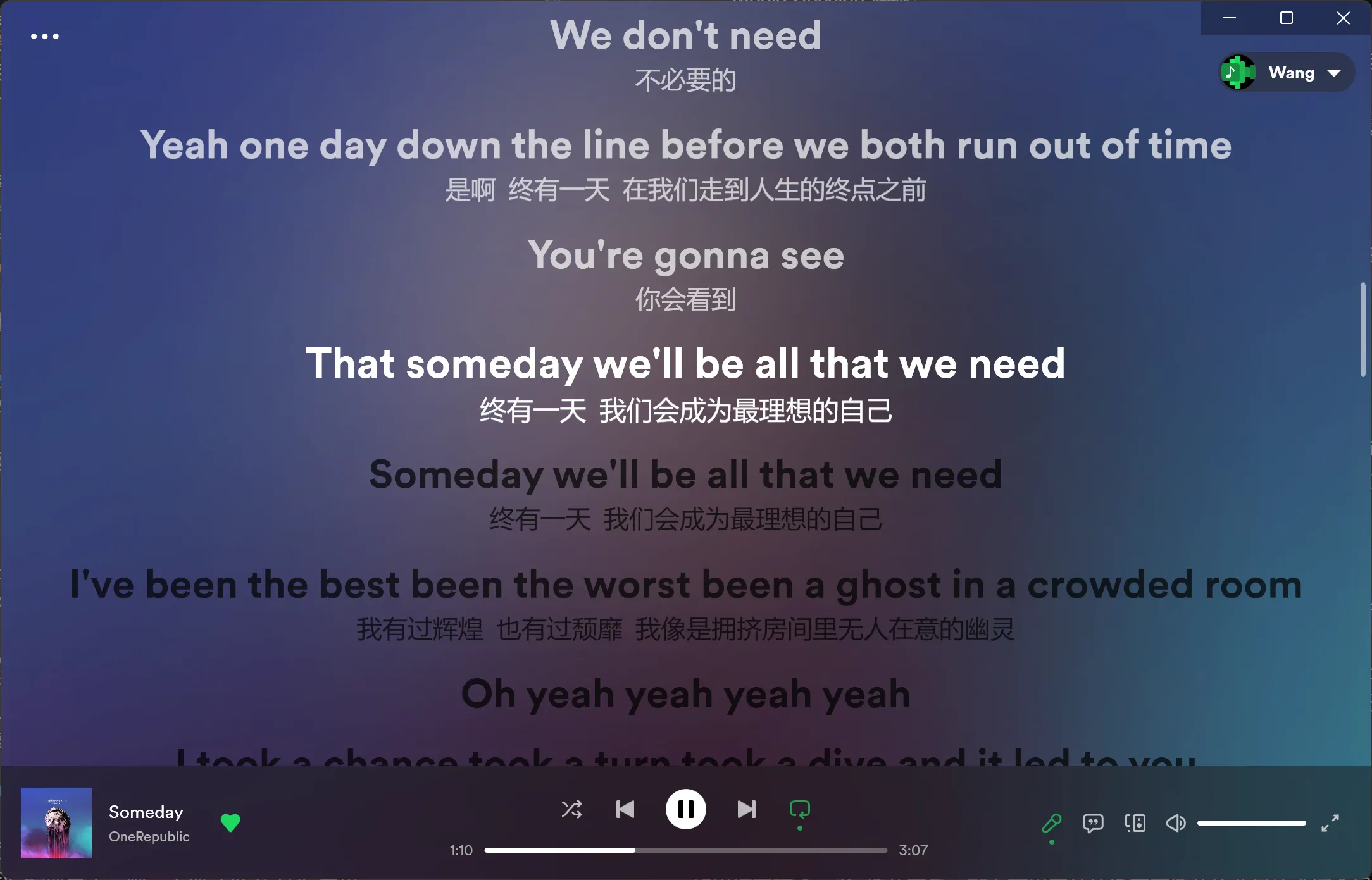
If you are not playing music on Spotify, the Lyricify Home will appear. If you are in the Lyrics interface, you can also hide the Lyrics interface by clicking the first microphone icon in the control area at the bottom right, which will then display the Lyricify Home.
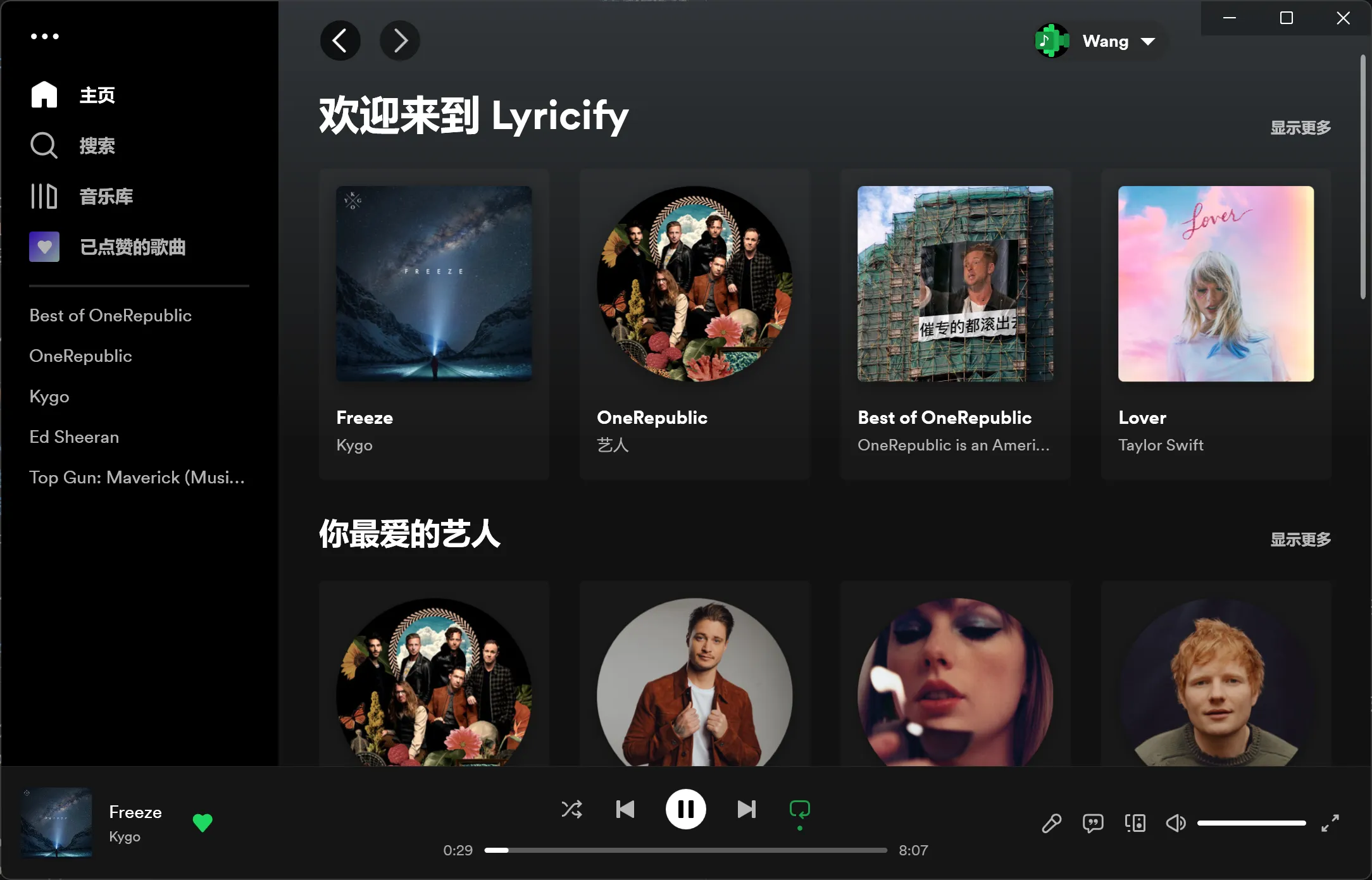
If you are not playing any music and there are no online Spotify devices, clicking the play button at the bottom or the play button in the Lyricify Home will have no effect. If you want to use Lyricify to play music directly without Spotify, you can refer to Using Lyricify’s Built-in Playback.
Buttons and Functions
Section titled “Buttons and Functions”Here are the buttons and functions in the Lyricify 4 Main Interface.
- Main Menu: Click the
···button in the top left corner of the window to open the Lyricify main menu, which contains various functional entries and basic settings. - Navigation Bar: The left navigation bar provides some shortcuts.
- Home: Lyricify Home.
- Search: Lyricify search page, which includes
Spotify Search,Lyrics Search (not available yet), and Availability Check. - Music Library: Spotify music library, which is basically consistent with the Spotify music library.
- Liked Songs: Songs in the Spotify music library, consistent with Spotify.
- Quick Access: You can pin some quick access items here, currently supporting
Playlists,Albums, andArtists. You can right-click these items and clickPin to Quick Accessto pin them.
- User Component: The user component in the top right corner contains information about the currently logged-in user, as well as entries for
Settings,About, andLogout. If theMedia Session Enhancementfeature is enabled, it will display the connection status of the Media Session here. - Song Information Area: The song information area in the bottom left corner.
- Album Image: Click to open
Song Information, which also includesAudio Features. - Song Name: Click or right-click the song name to display a menu that includes some navigation options;
Track Managementcan also be opened from this menu. - Artist: Click the artist to jump to that artist’s homepage.
- Album Image: Click to open
- Playback Control Area: The middle area at the bottom. Note: Lyricify’s control features require a Spotify Premium subscription. However, with Media Session enabled, it can control playback for Spotify Free accounts (must be the client on this device).
- Function Control Area: The button area at the bottom right.
- Lyrics: Microphone button, click to open or close the
Lyricsinterface. - Apple Music Lyrics: The second button, click to enter the
Apple Music Lyricsinterface. - Spotify Connect: The third button, click to manage Spotify Connect, similar to operations in the Spotify client.
- Volume Control: Control the volume. Note: This feature requires a Spotify Premium subscription.
- Fullscreen: Click to enter the
Lyricify Fullscreeninterface; right-click to enter theMobile UI Fullscreeninterface.
- Lyrics: Microphone button, click to open or close the
Portrait Style
Section titled “Portrait Style”When you resize the window to portrait mode, Lyricify will automatically adjust to Portrait Style, similar to Spotify Mobile Style.