
自訂 Spotify API Client 配置教程
自訂 Spotify API Client 的好處
Section titled “自訂 Spotify API Client 的好處”不再會因 Spotify API 返回 429 錯誤而影響 Lyricify 使用體驗。
使用自訂 API Client 需要擁有 Spotify Premium 訂閱。
此前已完成配置的用戶,自 2026 年 3 月 9 日起,也必須擁有 Spotify Premium 訂閱,否則將無法繼續使用自訂 API Client。
如果你已經完成過準備步驟,則可以直接使用之前獲得的 Client ID 和 Client Secret,在 Lyricify 上的工作 中使用。
- 在瀏覽器中登入 Spotify (https://www.spotify.com),如果你已登入,可進入步驟 2。
- 打開 https://developer.spotify.com/dashboard,如果你是第一次打開這個網址,則需要先同意 Spotify Developer Terms。勾選下方的
I accept the Spotify Developer Terms of Service,再點擊Accept the terms即可。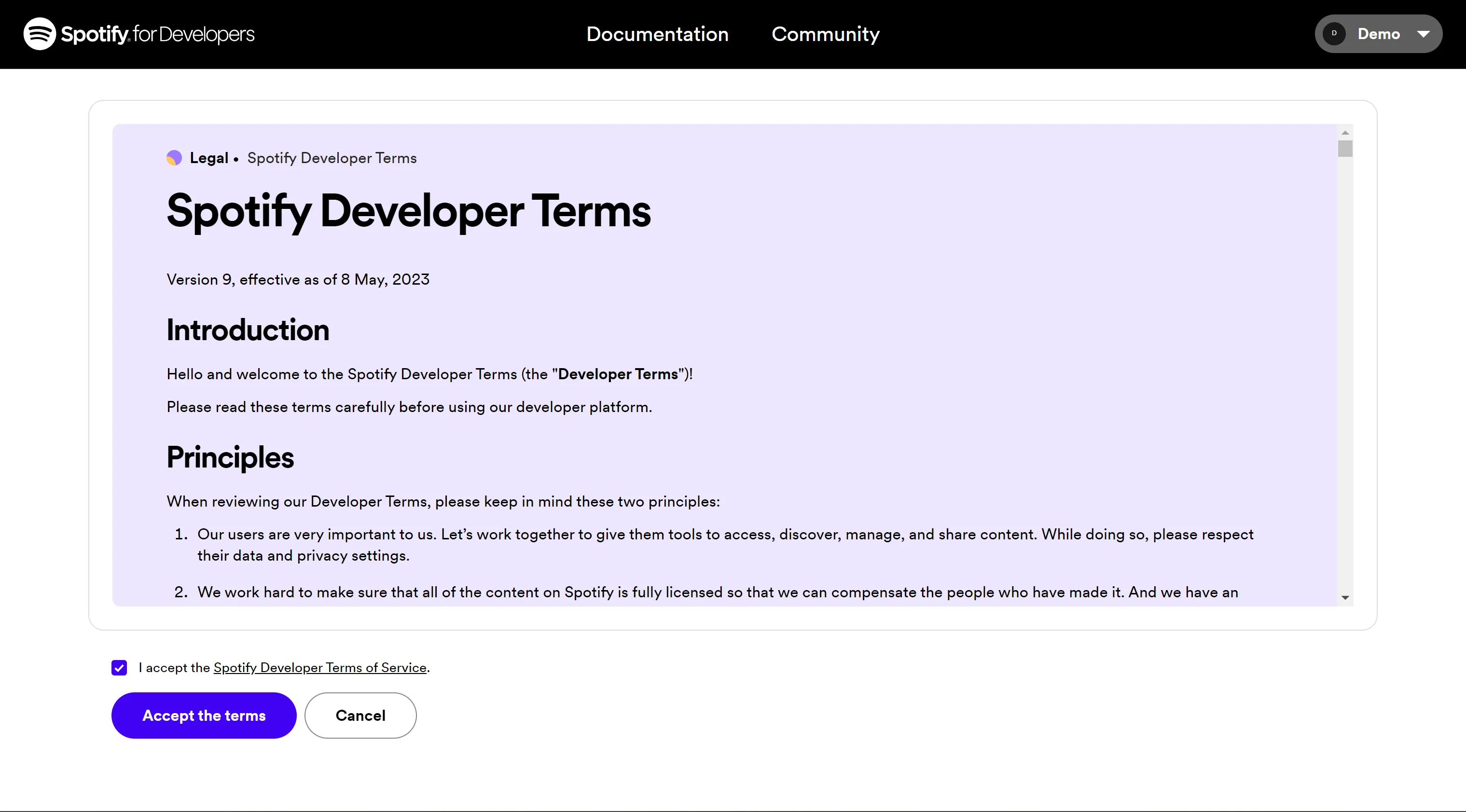
- 點擊 Dashboard 頁面右上方的
Create app。
如果提示You need to verify your email address before you can create an app.,則需要你先驗證你的郵箱。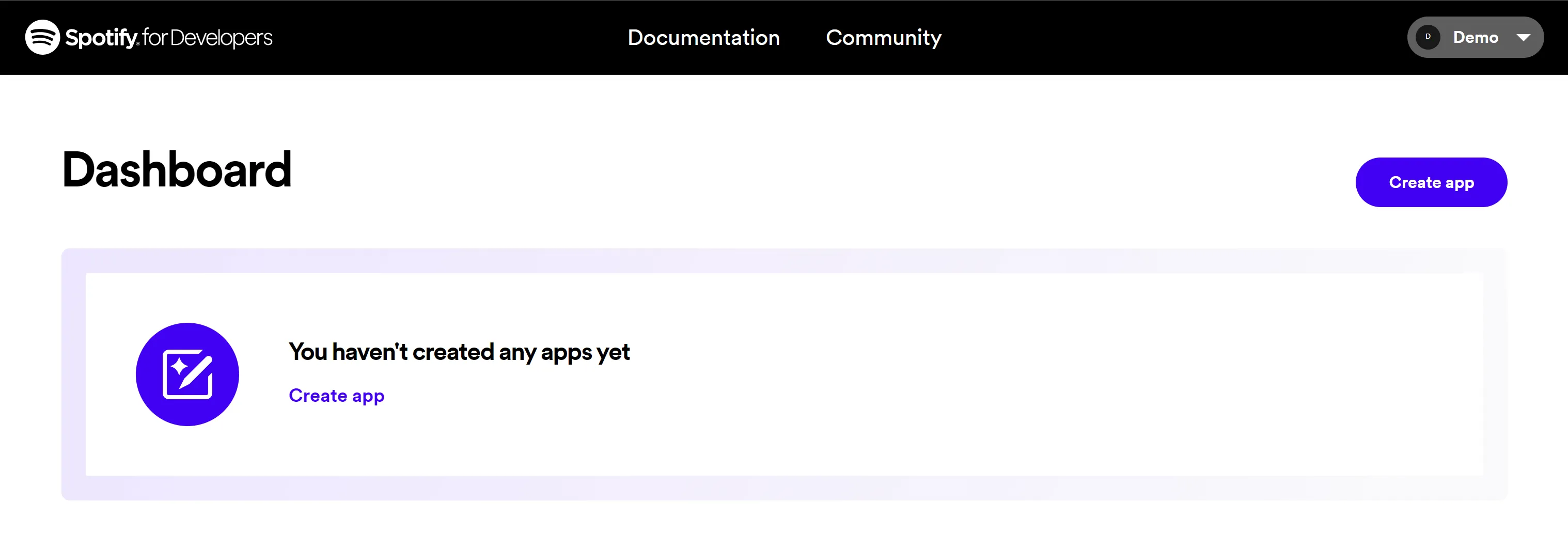
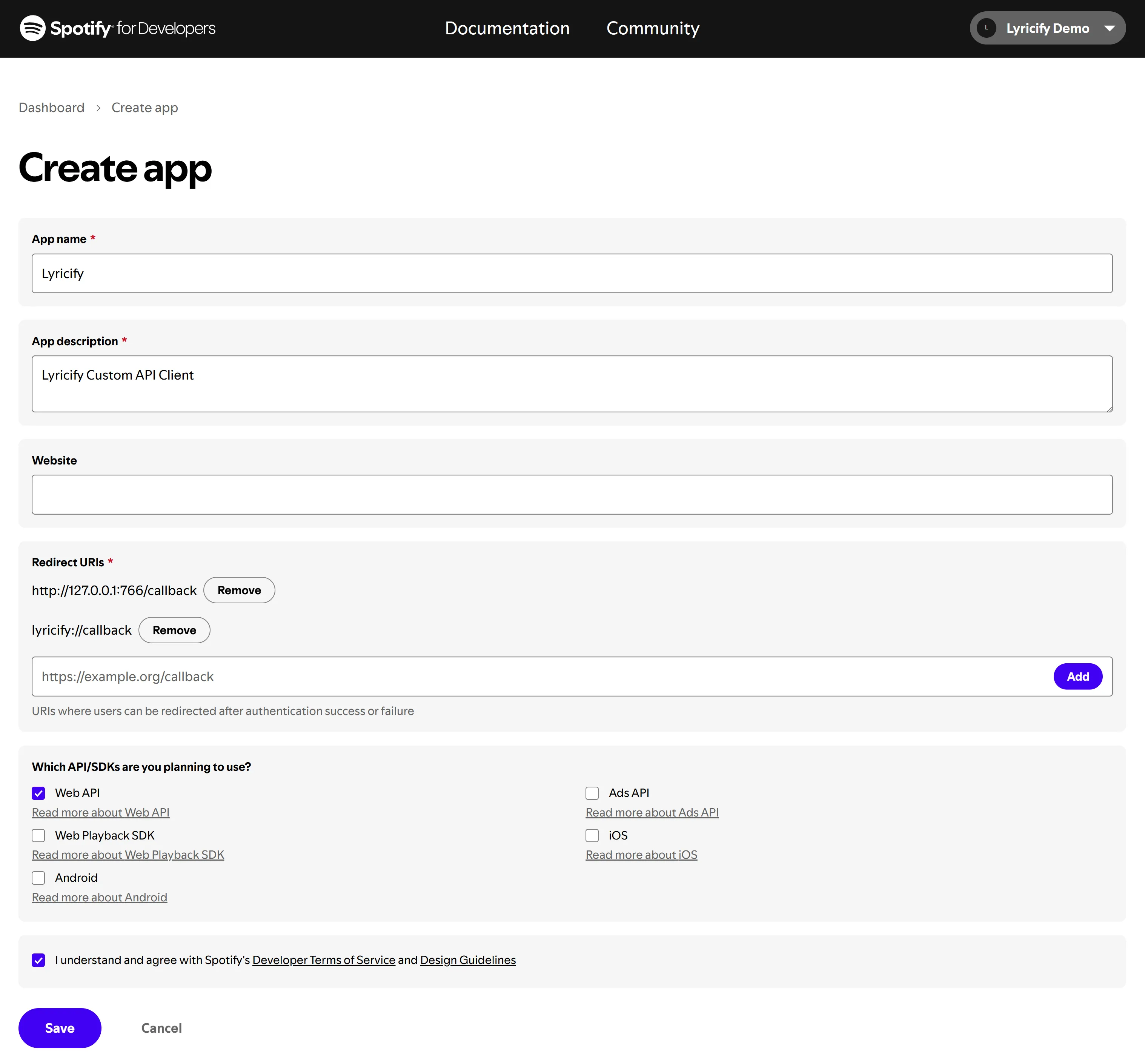
- 在 Create app 頁面中填寫以下信息:
- App name: Lyricify
- App description: Lyricify Custom API Client
- Website: (空著不寫)
- Redirect URI: (填寫以下兩條,每條填寫完成後點擊
Add按鈕)- http://127.0.0.1:766/callback
- lyricify://callback
- 勾選
Which API/SDKs are you planning to use?部分中的Web API;
勾選I understand and agree with Spotify's Developer Terms of Service and Design Guidelines;
點擊Save按鈕。
- 這時你就能看到 Client ID,點擊
View client secret,即可顯示 Client secret。在後續步驟中將需要用到Client ID和Client Secret。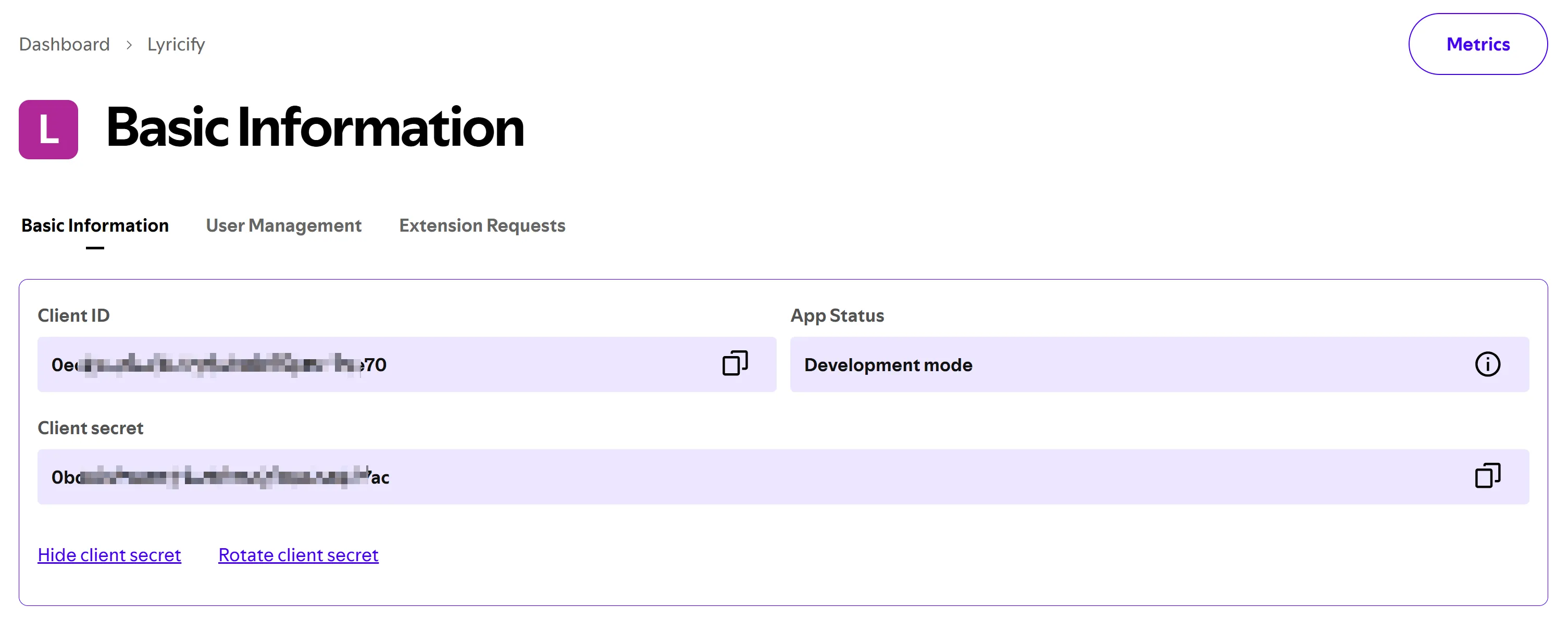
Lyricify 上的工作
Section titled “Lyricify 上的工作”- 如果你已經在 Lyricify 中登入了 Spotify,則需要先在 Lyricify 中登出。
- 點擊歡迎界面左下角的
配置自訂 API Client。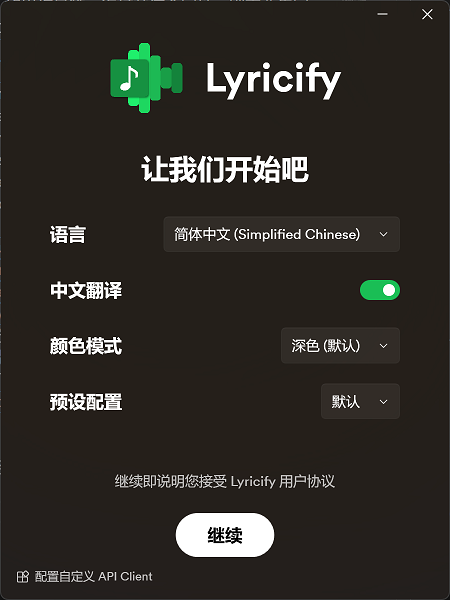
- 在彈出的窗口中輸入準備步驟中獲取到的
Client ID和Client Secret,點擊確定即可。 - 繼續完成登入,享受你的 Lyricify 之旅吧。
授權時提示 INVALID_CLIENT: Invalid redirect URI
Section titled “授權時提示 INVALID_CLIENT: Invalid redirect URI”請檢查 Redirect URI 是否填寫錯誤,確保其值包含 http://127.0.0.1:766/callback,而不是 https://127.0.0.1:766/callback。
如果你在 2025 年 4 月 9 日前創建並配置過自訂 API Client,請務必前往 Spotify Developer Dashboard 更新設置。由於 Spotify 調整了對重定向 URI 的要求,原本使用 localhost 的 URI 已不再被接受,你需要將原先的:
http://localhost:766/callback替換為:
http://127.0.0.1:766/callback請進入對應應用的設置頁面,並在 Redirect URI 中添加 http://127.0.0.1:766/callback。完成後即可正常使用自訂 API Client 進行授權。