
自定义 Spotify API Client 配置教程
自定义 Spotify API Client 的好处
Section titled “自定义 Spotify API Client 的好处”不再会因 Spotify API 返回 429 错误而影响 Lyricify 使用体验。
如果你已经完成过准备步骤,则可以直接使用之前获得的 Client ID 和 Client Secret,在 Lyricify Mobile 上的工作 中使用。
- 在浏览器中登录 Spotify (https://www.spotify.com) ,如果你已登录,可进入步骤 2。
- 打开 https://developer.spotify.com/dashboard ,如果你是第一次打开这个网址,则需要先同意 Spotify Developer Terms。勾选下方的
I accept the Spotify Developer Terms of Service,再点击Accept the terms即可。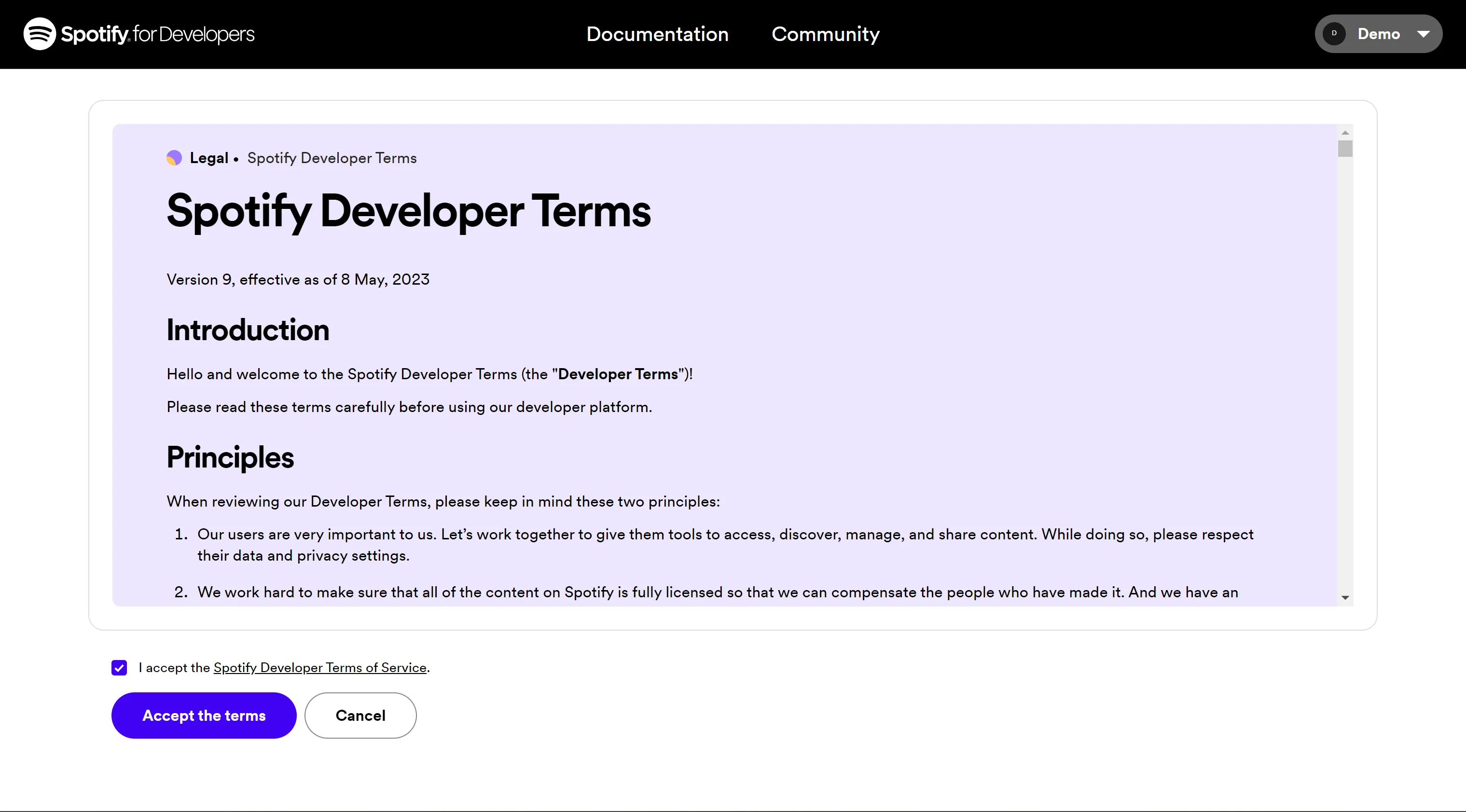
- 点击 Dashboard 页面右上方的
Create app。
如果提示You need to verify your email address before you can create an app.,则需要你先验证你的邮箱。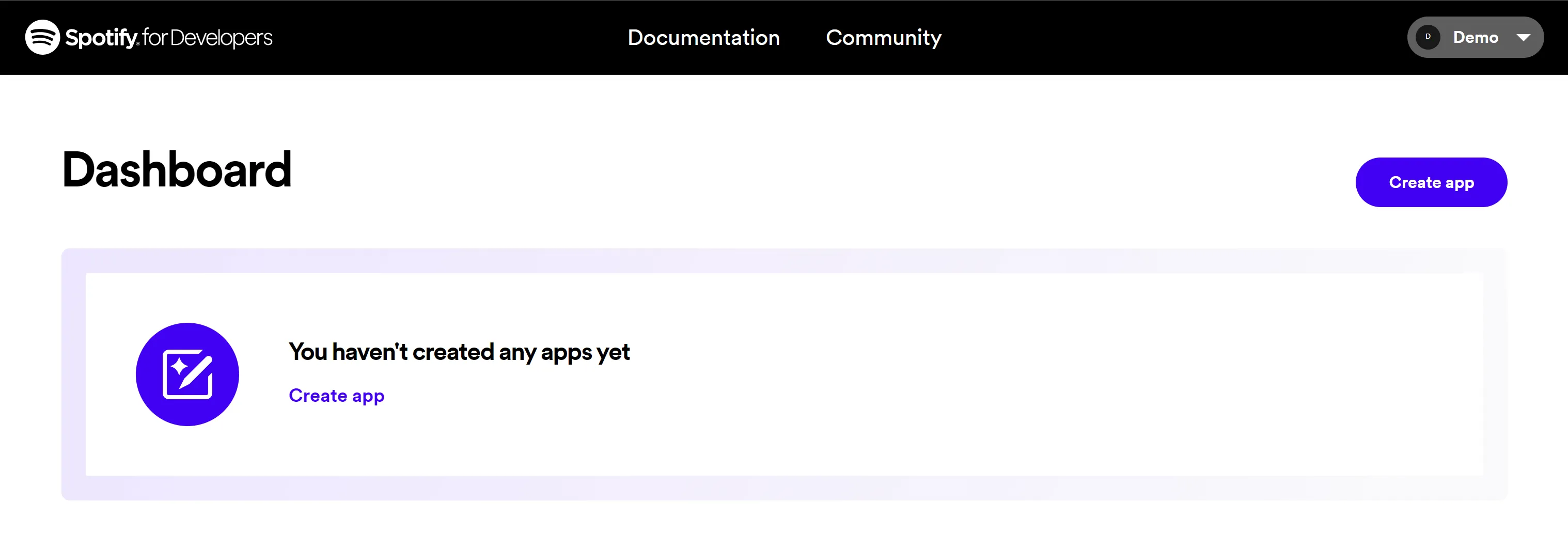
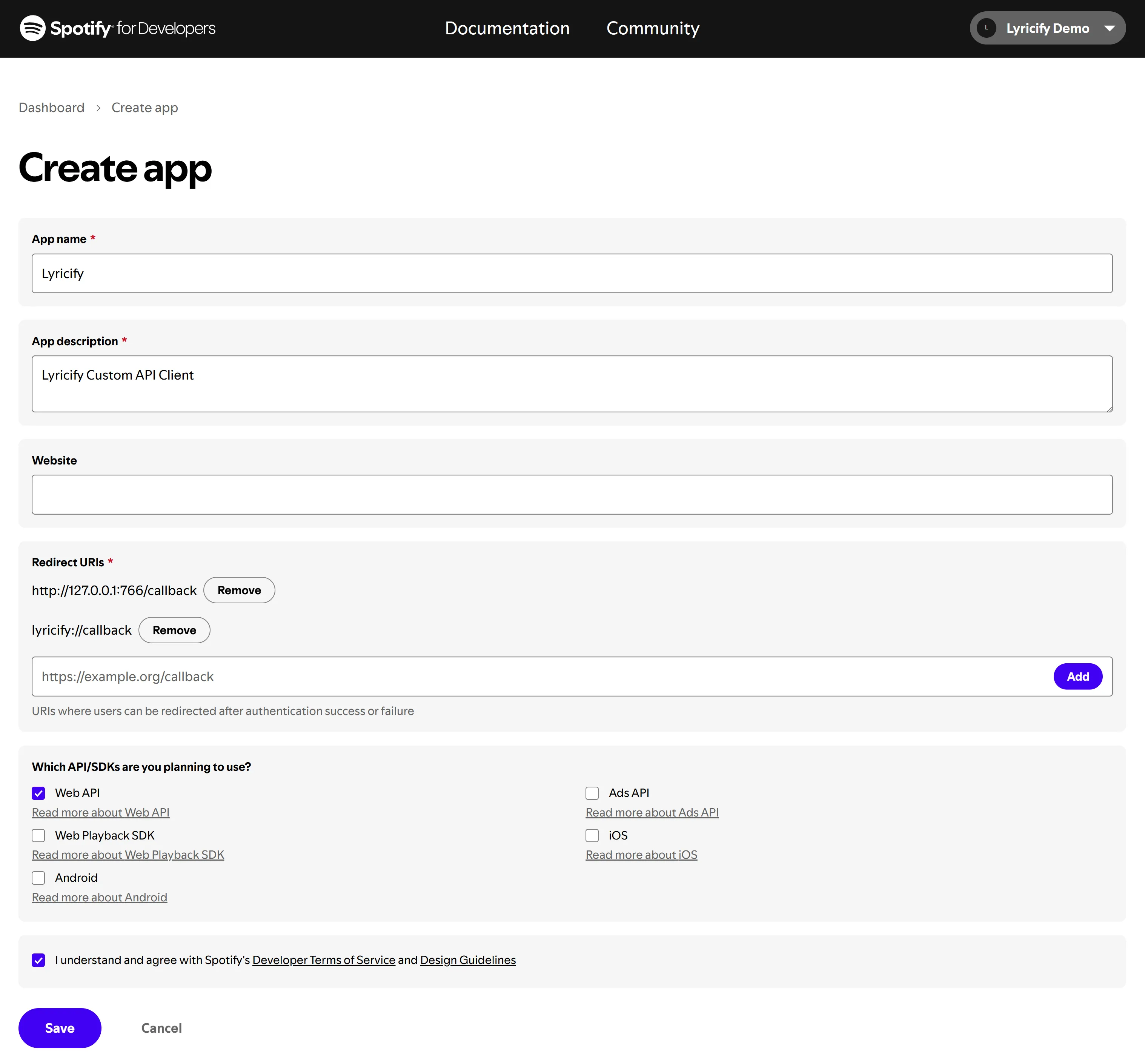
- 在 Create app 页面中填写以下信息:
- App name: Lyricify
- App description: Lyricify Custom API Client
- Website: (空着不写)
- Redirect URI: (填写以下两条,每条填写完成后点击
Add按钮)- http://127.0.0.1:766/callback
- lyricify://callback
- 勾选
Which API/SDKs are you planning to use?部分中的Web API;
勾选I understand and agree with Spotify's Developer Terms of Service and Design Guidelines;
点击Save按钮。
- 这时你就能看到 Client ID,点击
View client secret,即可显示 Client secret。在后续步骤中将需要用到Client ID和Client Secret。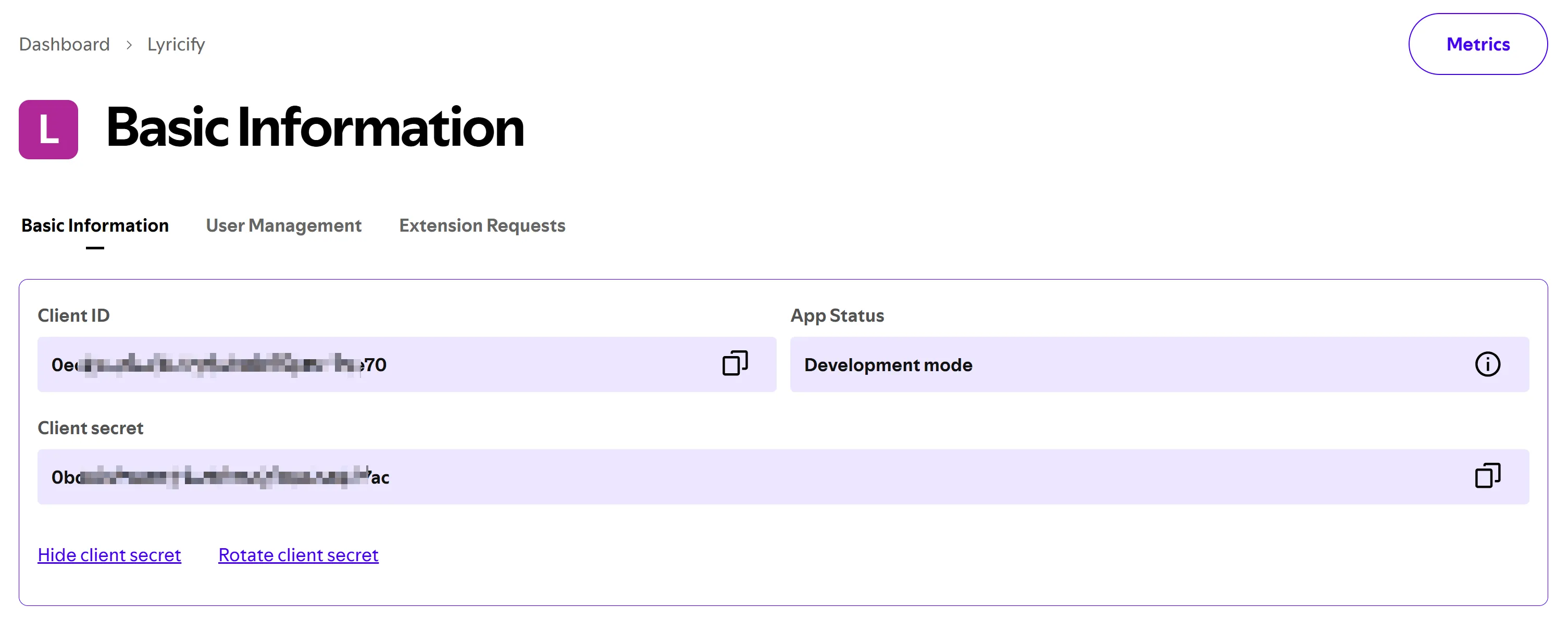
Lyricify Mobile 上的工作
Section titled “Lyricify Mobile 上的工作”- 如果你已经在 Lyricify Mobile 中登录了 Spotify,则需要在打开 Lyricify Mobile 后,进入登录界面时点击
取消。 - 在欢迎界面
自定义 API Client区域对应处输入准备步骤中获取到的Client ID和Client Secret。 - 点击
登录 (获取 Token),重新完成登录和授权即可。
授权时提示 INVALID_CLIENT: Invalid redirect URI
Section titled “授权时提示 INVALID_CLIENT: Invalid redirect URI”请检查 Redirect URI 是否填写错误,确保其值包含 lyricify://callback 和 http://127.0.0.1:766/callback,而不是 https://127.0.0.1:766/callback。
如果你是在 Android 或 iOS 设备上使用,请确保其值包含 lyricify://callback。
请确保你使用的是 1.5.0 或更新版本的 Lyricify Mobile,且使用的是 跳转浏览器登录。由于 Spotify 的调整,内嵌网页登录 暂时无法使用,下一版本更新后将恢复。
如果你在 2025 年 4 月 9 日前创建并配置过自定义 API Client,请务必前往 Spotify Developer Dashboard 更新设置。由于 Spotify 调整了对重定向 URI 的要求,原本使用 localhost 的 URI 已不再被接受,你需要将原先的:
http://localhost:766/callback替换为:
http://127.0.0.1:766/callback请进入对应应用的设置页面,并在 Redirect URI 中添加 http://127.0.0.1:766/callback。完成后即可正常使用自定义 API Client 进行授权。